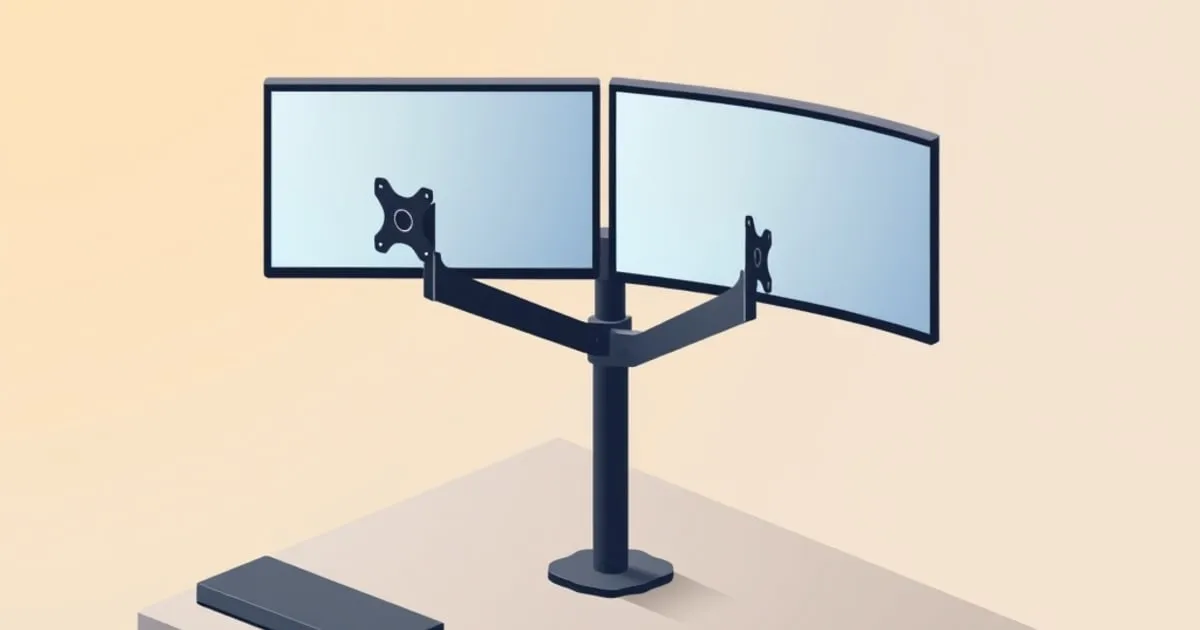
Eight steps, in order, cover how to set up dual monitor arm hardware: weigh each bare panel, choose the layout, mount the post where that layout needs it, set the arm collars, fit the VESA plates, hang both screens, tension the springs with the screens on, then align the screen tops at or just below eye level, angled inward.
Order matters because the two classic faults, a spring tensioned for the wrong load and a post bolted where neither screen can sit in front of you, are quick fixes with the panels off and slow ones with them on.
Which kind of dual monitor arm do you have?
Count the springs. Two independent arms on one pole, like Ergotron’s LX Dual Side-by-Side, give each screen its own lift and its own tension screw. One arm with a crossbar, like Ergotron’s LX Desk Dual Direct, raises both screens together on a single spring, so you tension it for their combined weight.
The published specs for the LX Dual Side-by-Side and the LX Desk Dual Direct show how differently the two designs load:
| Spec | Two arms, one pole (LX Dual Side-by-Side) | One arm, crossbar (LX Desk Dual Direct) |
|---|---|---|
| Weight per screen | 7–20 lb (3.2–9.1 kg) | 2–11 lb (0.9–5 kg) |
| Combined maximum | 40 lb (18.1 kg) | 22 lb |
| Screen size | Up to 27 in | Up to 25 in, some 27 in |
| Lift range | 13 in (33 cm), each screen on its own arm | 13 in (33 cm), both screens together |
| Tilt | 75° | 15° back, 15° forward, per screen |
| Desk clamp | Edge up to 2.6 in (66 mm) thick | Edge 0.4–2.4 in (10–60 mm) thick |
| VESA | 75 x 75, 100 x 100 mm | 75 x 75, 100 x 100 mm |
| Warranty | 10 years | 10 years |
The crossbar has a further catch: Ergotron promises the full 13-inch lift only under 17 lb (7.7 kg) combined, and above that the travel can shrink by up to 4.5 inches. Many budget dual arms copy the two-arms-on-a-pole layout using gas springs rather than mechanical ones. If your two screens differ a lot in weight, two separate single arms usually beat both designs, as covered in single vs dual vs triple monitor arms.
Step 1: Weigh each panel, not the pair
A dual arm has two ratings and both bind: the per-screen range and the combined maximum. Use the bare panel weight with the stand off; typical figures are in monitor weight by size, and the case for leaving headroom is in monitor arm weight capacity.
Mind the minimum as well. The LX Dual Side-by-Side is rated from 7 lb per screen, and a panel under an arm’s floor can keep drifting upward with the spring fully backed off.
Both arms in the table accept 75 and 100 mm VESA patterns only, so a panel with a 200 mm pattern needs a different arm. Screw sizes and spacing are in what VESA 100x100 means.
Step 2: Choose the layout before you clamp anything
Decide which screen is primary first, because that sets the post position. Ergonomists writing in EHS Today give a working rule: if one screen gets more than 80 percent of your time, set it up as your only monitor would be, directly in front of you, with the second beside it on your dominant-eye side at the same height and distance. If you split time evenly, push the screens together so their inner edges meet in front of your nose.
Cornell’s CUergo guidelines agree that the working screen belongs “directly in front of you and facing you,” and OSHA’s monitor guidance keeps screens within 35 degrees left or right of center. A secondary pushed past that turns every glance into a neck rotation.
On a two-arm pole, the post usually sits behind the seam between the screens: on your midline for equal use, about half a screen width toward the secondary side for a primary-plus-secondary layout. A crossbar always puts the seam at the arm’s tip, which suits equal use best.
Step 3: Mount the base where the layout puts it
The base carries both screens’ leverage at one point. The LX Dual Side-by-Side clamp fits desk edges up to 2.6 inches (66 mm) thick, and its grommet fits holes 5/16 to 2 inches (7–51 mm) wide in desktops up to 3 inches (80 mm) thick. A grommet passes through the desktop, so it does not depend on clamping pressure at one edge, which is why it tends to hold two screens more steadily. The trade-offs are in desk clamp vs grommet vs wall mount.
Tighten a clamp until it is firm, not until the laminate dimples. Leave room behind the post for the arms to fold back fully, and on a sit-stand desk, check that no frame crossbar sits under the mounting point.
Step 4: Set the arm collars on the pole
On a two-arm pole, each arm’s collar or set screw fixes the bottom of its lift travel. Matched screens get matching collar heights. For a 24-inch beside a 27-inch, set the smaller screen’s collar higher so the tops can line up later. Moving a collar after the screens are hung usually means taking them off again.
Step 5: Fit the VESA plates
Lay each monitor face down on something soft, remove the stand, and fit the plate with the shortest screws that fully engage, adding the supplied spacers if the holes are recessed. Orient both quick-release tabs the same way so the screens hang identically. The single-arm version of this sequence is in how to install a monitor arm.
Step 6: Hang both screens
Hang one screen, lock its retaining screw or latch, and keep a hand on it: an untensioned spring sinks or rises the moment it takes the load. Then hang the second. Ergotron’s Dual Direct manual uses the same sequence on its crossbar, sliding each bracketed monitor on and tightening its thumb screws. On a crossbar, hang both before adjusting anything, since one screen alone unbalances the bar.
Step 7: Tension each spring with the screens on
Find the lift screw, usually a hex socket at the elbow or base marked with plus and minus. If a screen sinks after you let go, increase lift strength; if it drifts up, decrease it. Follow your manual on arm position: the Dual Direct guide says to finish the installation, raise the arm to its highest position, then adjust with a 4 mm hex key. A badly mismatched load can take many full turns before the change is noticeable.
On a two-arm pole, tension each side separately, because uneven tension shows up as one drooping screen. On a crossbar, one spring carries both, and the Dual Direct adds a separate level-crossbar adjustment for a bar that sits crooked. Where tilt has its own tension screw, set it so each screen holds its angle when you tap the top edge.
Re-tension whenever the mounted weight changes, webcam included. If an arm will not hold after full adjustment, the load is out of range, and the sagging-arm fixes identify which joint is at fault.
Step 8: Align the tops, set distance and angle, route cables
Sit in your normal working posture and bring the screens to you. OSHA’s targets: top line of the screen at or below eye level, screen center 15 to 20 degrees below horizontal eye level, 20 to 40 inches (50 to 100 cm) from the eyes, and tilt of no more than 10 to 20 degrees. Cornell lands in the same place, with the center about 17.5 degrees below eye level and the screen roughly an arm’s length away.
Align the tops of the two screens, not their centers, and angle both inward into a shallow curve. OSHA notes that bifocal wearers may need screens lower than these targets; the full measurement set is in monitor height ergonomics.
Route each display and power cable through the arm channels with slack at every joint, then run both arms through full extension, full retraction, and both height extremes. On a standing desk, repeat that at sitting and standing height.
How do you know the setup is right after 90 minutes?
Work a normal 90-minute block, then notice where you feel it. A well-set dual arm leaves nothing tight on one side. One-sided neck tightness, an ache at the base of the skull, or catching yourself leaning toward the screen each points to one specific adjustment, not to a new arm.
Ninety minutes is also the task length in a Human Factors study of 27 healthy young adults, where a dual-monitor desktop produced lower right-side neck extensor activity than a laptop but larger errors on a head-repositioning test. A second screen changes how the neck works; it does not make posture neutral by itself.
- One side of the neck tight: you turn toward one screen more than planned. Center it, or switch to the equal-use layout.
- Ache at the base of the skull: screen tops too high, or lenses tipping your head back. Lower both screens together.
- Leaning forward or eye strain: screens too far or text too small. Move them closer, no nearer than 20 inches, or scale text up.
- A screen lower than you left it: that arm’s spring is under-tensioned.
Pain that persists, radiates down an arm, or comes with numbness or tingling needs a clinician’s diagnosis; moving a monitor is a workstation fix, not a treatment. For the side-by-side versus stacked decision itself, see the dual monitor setup guide.
FAQ
Should dual monitors be angled inward?
Yes. Angle both screens inward into a shallow curve so each one faces you squarely. In a primary-plus-secondary layout, keep the primary flat and straight ahead and angle only the secondary toward you, keeping it within OSHA’s 35-degree limit for how far off-center a screen should sit.
Can you put two different size monitors on a dual monitor arm?
Yes, if each panel sits inside the per-screen weight range and uses a supported VESA pattern. Set the smaller screen higher so the tops align rather than the centers. On a crossbar design, unequal weights pull the shared bar out of level, so two independent arms on one pole handle mixed sizes better.
How far apart should dual monitors be on a monitor arm?
Close enough that the bezels nearly touch. For equal use, EHS Today’s guidance puts the inner edges together directly in front of your nose; any gap pushes both screens further off-center. For a primary-plus-secondary layout, butt the secondary against the primary’s edge so the head turn needed to read it stays small.
Do I need a grommet mount for a dual monitor arm?
No. A clamp works if your desktop edge is within the arm’s clamp range and nothing blocks the underside. A grommet is the steadier choice for two screens because it bolts through the desk rather than gripping one edge, and an existing cable hole can serve if it sits near the right spot.
Related across the network
- How to Fix Bad Posture at Desk: A Measurement-First Guide — ergoranker.com
- How to Choose an Ergonomic Chair: 10-Point Checklist — ergochairguide.com


