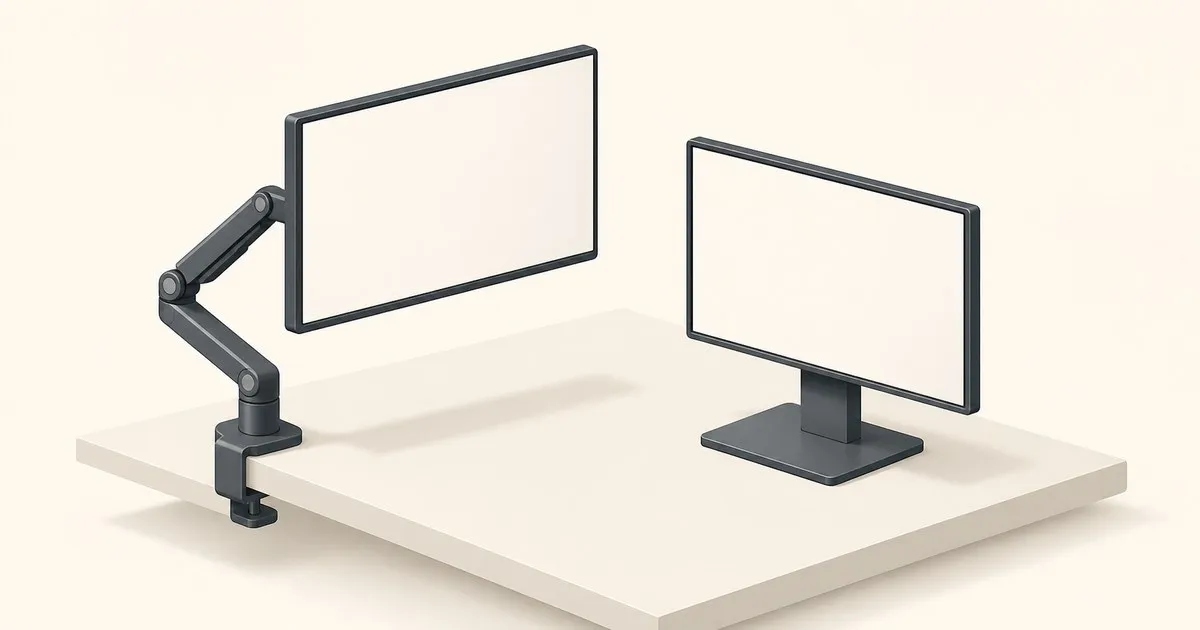
A monitor arm vs monitor stand decision comes down to the position you need and the mounting options your desk permits. A stand rests on a desktop base; an arm supports the monitor from a desk or wall attachment and moves within its specified range. Either can be suitable when it places the screen correctly.
Keep a stand that already supplies the height, distance, and adjustment you need. Consider an arm when the stand’s base or movement range gets in the way. Once that decision is made, compare monitor arms, ranked for the buying shortlist.
Arm vs Stand at a Glance
| Question | Monitor arm | Monitor stand or riser |
|---|---|---|
| How does it attach? | Desk clamp, grommet, wall mount, or another specified base | A base rests on the desktop; a riser supports that base |
| Can it change screen height? | Within the arm’s published range; some mounts require tools | Depends on the stand; a fixed riser adds height only |
| What occupies desk space? | Attachment hardware and the space needed for arm movement | The stand or riser’s footprint |
| What needs checking? | Load range, VESA attachment, desk fit, and clearance | Stable support, base dimensions, load rating, and available adjustment |
| What does it cost? | Arm, base, and any required approved adapters | An included stand adds no separate purchase; a riser or replacement costs extra |
Neither column is an automatic ergonomic winner. OSHA’s monitor guidance describes screen position, not a requirement to buy an arm.
What Is a Monitor Stand?
A factory stand supports the display on a base that sits on the desk. Some stands adjust height, tilt, swivel, and portrait orientation; others provide only tilt. Read the monitor’s specification sheet instead of assuming every included stand has the same range.
A riser is different: it is a platform placed under the existing stand. It raises the whole assembly without adding the articulation of an arm. Check that the base fits fully on the platform and that the platform’s rated load covers what it supports.
A freestanding VESA stand is another option. It replaces the factory stand using the monitor’s mounting interface while still resting on a desktop base. Its compatibility and stability requirements differ from those of a simple riser.
What Is a Monitor Arm?
An arm connects the display to a mount through articulated sections. Depending on the model, it can change height, distance, tilt, swivel, and orientation. A spring mechanism may allow repositioning after load-specific tension adjustment; fixed or friction mounts have different adjustment procedures.
The Ergotron LX specification, for example, describes a 7–25 lb load range, 13 inches of lift, and up to 25 inches of extension. Those are figures for that model, not for every arm.
Use the VESA compatibility guide and capacity guide to check whether an arm can support your monitor before comparing its movement with the stand.
Check Your Existing Screen Position First
Sit in the position you normally use for work. Check whether the top of the screen can sit at or below eye level without bending your head to read. Confirm that you can view the display without leaning forward and that it can sit where your main work takes place.
OSHA gives a general viewing-distance range of 20–40 inches. Text size, visual needs, and the screen arrangement still matter; do not move the display farther away just to reach a number if that makes you lean toward it.
The monitor height guide explains the placement checks. If the stand already reaches that position, an arm purchase needs another reason, such as freeing a base footprint or making frequent repositioning easier.
What Changes on a Sit-Stand Desk?
A stand and a desk-mounted arm both rise when the desktop rises. An arm is useful when you also need to change the screen position relative to the desk, but standing does not automatically make a monitor stand unusable.
Set the keyboard position and check the screen separately at both working heights. There is no universal number of inches by which the monitor must move relative to the desktop between sitting and standing.
A wall-mounted display remains at its wall position while the desk moves. Check that its adjustment range works at both heights and that the desktop cannot collide with it. The standing-desk arm guide covers that choice.
Desk Space and No-Drill Constraints
An arm can remove a stand’s base from the desktop, but the space recovered depends on the actual base dimensions and where the attachment sits. Measure the equipment rather than assuming a fixed number of square feet saved.
Allow room for the arm to fold, for the display to swivel, and for cables to bend without being trapped. On a shallow desk, an arm whose joints need rear clearance may not place the screen farther back than a compact stand.
If you cannot drill, check whether a clamp is permitted and whether it fits the desk edge. A blocked edge, unsupported surface, or unsuitable desktop material can rule it out. Keeping a stable stand is a practical option when neither drilling nor an approved clamp installation is available.
The clamp, grommet, and wall-mount comparison explains the installation requirements.
Heavy Displays and the Total Purchase Cost
A heavy monitor does not automatically need an arm. Its factory stand may already support it in the position you need. An arm becomes useful when its additional adjustment or mounting location solves a specific problem.
Compare the complete cost of the arm, required base, and approved adapters. Check the monitor’s stand-free weight and depth before considering a heavy-duty model; an arm with a higher maximum may also have a minimum that excludes your panel.
For the buying decision, use the heavy-monitor arm shortlist. Do not assign a financial payback or health benefit to an arm just because it costs more than a riser.
A Laptop Stand and Monitor Arm Can Work Together
You do not need matching hardware under every display. A laptop on a stable stand and an external monitor on an arm can provide separate placement for each screen. Two suitable stands can also work when they achieve the needed positions.
When raising a laptop screen, plan an external keyboard and pointing device so their position can be adjusted independently. OSHA’s workstation purchasing guide discusses input-device and laptop setup considerations.
Use the dual-monitor setup guide to plan primary and secondary screen placement. Choose the hardware after identifying those positions.
Apple Studio Display: Check the Mounting Configuration
Studio Display is offered with different stand and VESA configurations. Apple’s support guidance explains that a stand or VESA adapter can be changed to another compatible option through its listed service channels, subject to parts and service charges.
Do not assume an included stand is user-interchangeable with a generic adapter. Identify the exact display model, its current mounting arrangement, and the supported conversion before buying an arm.
Decide From the Missing Adjustment
Choose a stand when its support, footprint, and available movement already work. Choose a riser when additional fixed height is the only missing dimension and the complete assembly remains stable. Choose an arm when you need its documented range of movement or a different attachment location.
The Fit Checker provides an initial compatibility screen. Confirm the result in the manufacturers’ documentation, then use the installation guide for the next step.


