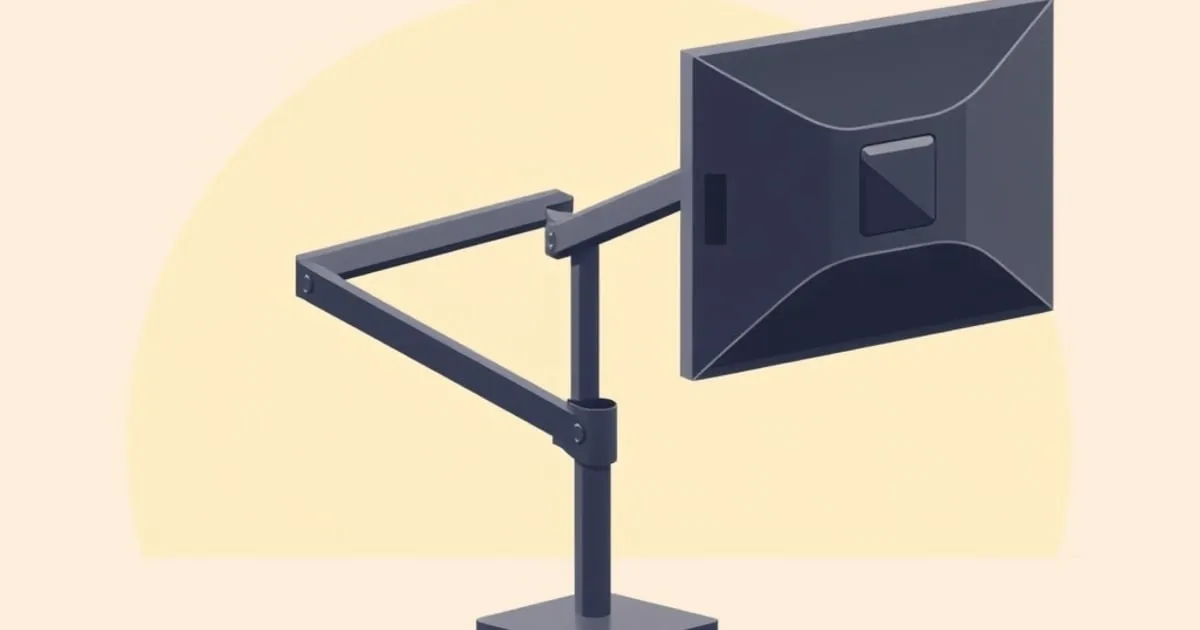
Almost every monitor arm purchase is really a height purchase. The weight ratings and VESA patterns are compatibility gates; the reason anyone spends $200 on a mounting bracket is that the screen is in the wrong place and the factory stand cannot move it.
This page collects the target numbers from published workstation guidance, then does the arithmetic that tells you whether the stand you already own can hit them.
The Target Numbers
OSHA’s Computer Workstations eTool is the most-cited public source for screen placement, and it is unusually specific:
| Dimension | Published target |
|---|---|
| Top of screen | At or slightly below eye level |
| Screen center | 15 to 20 degrees below horizontal eye level |
| Viewing distance | 20 to 40 inches (50 to 100 cm) from the eyes |
| Screen tilt | 10 to 20 degrees back |
| Downward viewing cone | Whole screen inside 60 degrees |
| Horizontal placement | Directly in front, no more than 35 degrees off-axis |
CCOHS reaches the same place from the other direction in its office ergonomics guidance, which puts the monitor about 15 degrees or slightly lower below the horizontal line, treats an arm’s length as a good working estimate of viewing distance, and notes that looking upward above the horizontal is the tiring direction while a downward gaze is not. For corrective-lens wearers it specifically recommends dropping the top of the monitor slightly below eye level.
Two of these get ignored constantly. The 15 to 20 degree downward angle to screen center is why “top of screen at eye level” works: your resting gaze is naturally below horizontal, so a screen whose top edge is level with your eyes puts its center exactly where you already look. And the 35 degree off-axis limit is why a second monitor shoved to one side is an ergonomic problem regardless of its height.
Set the Keyboard Before Measuring Eye Height
When a keyboard tray drops the keyboard 2 to 4 inches, check your seated position before measuring the screen target. That drop is an example, not a universal tray specification; verify the chosen tray’s drawing and knee clearance. Set the keyboard and screen independently.
If the stock stand cannot reach your target, compare monitor arms, ranked by their published vertical travel.
Measure Your Own Eye Height First
The target is a position relative to your eyes, not a number of inches above the desk. Three steps:
- Sit at the desk in your normal working posture. Feet flat, back supported, head neutral. Do not sit up straight for the measurement; you will not work that way.
- Look straight ahead and mark that height on the wall or a bookshelf behind the desk.
- Measure from the desktop surface up to the mark.
That figure, your eye height above the desktop, is usually somewhere between 15 and 22 inches depending on your height, your chair, and whether the desk is a standard 29 inch office height or something taller.
The Arithmetic That Decides Stand or Arm
Now compare that number against what the screen physically needs.
A 16:9 panel’s height is roughly its diagonal times 0.49, so:
| Panel | Active height | Plus bezel and mount offset |
|---|---|---|
| 24 inch 16:9 | 11.8 in | about 12.5 in |
| 27 inch 16:9 | 13.2 in | about 14 in |
| 32 inch 16:9 | 15.7 in | about 16.5 in |
| 34 inch 21:9 ultrawide | 13.1 in | about 14 in |
Subtract the panel height from your eye height above the desktop, and you get the gap that must exist between the desktop and the bottom edge of the screen:
- Eye height 16 in with a 27 inch panel: the bottom edge needs about 2 inches of clearance. Almost any stand manages this.
- Eye height 19 in with a 27 inch panel: about 5 inches of clearance.
- Eye height 22 in with a 27 inch panel: about 8 inches of clearance, and this is where factory stands run out.
Published stand specifications for mainstream 24 and 27 inch business panels typically list something in the region of 110 to 150 mm of total height adjustment, which is roughly 4 to 6 inches, and that travel starts from a base that already sits an inch or two off the desk. Dell’s UltraSharp user guides publish the figure directly for their height-adjustable stands. Gaming and consumer panels frequently publish less, and many budget monitors ship with no height adjustment at all.
An articulating arm changes the shape of the problem rather than nudging it. The Ergotron LX (Amazon Associates) publishes 13 inches of vertical travel and 25 inches of horizontal extension, which is two to three times the range of the stand it replaces, and it moves the screen forward and back as well as up and down. One caveat the Ergotron LX review covers in detail: above 20 lbs the bottom 4.5 inches of that travel become unavailable, which matters precisely when a short user needs the screen low.
The short rule: if your eye height above the desktop minus your panel height is more than about 5 inches, a factory stand will not get you there, and no amount of sitting differently fixes it.
Run your own panel and desk through the Monitor Arm Fit Checker to see the capacity and mount side of the same question.
Distance Is Half the Answer
Height gets all the attention and distance gets none, which is backwards for large panels.
The 20 to 40 inch window is not a suggestion for a 32 inch screen. A large panel too close forces constant head rotation to reach the edges, and it pushes the top corners outside the 60 degree viewing cone even when the center is set correctly. Bigger screens belong further back, and a 30 inch deep desk is often the constraint rather than the monitor.
This is exactly what horizontal extension on an arm buys. A stand fixes the screen at whatever depth its base occupies. An arm lets you push a 32 inch panel to the back of the desk when you are reading and pull it forward when you are not, and it removes the base footprint that was eating the depth in the first place.
What Changes for Ultrawides and Curved Panels
A 34 inch ultrawide is only about as tall as a 27 inch 16:9, so the height target is nearly identical. What changes is the horizontal geometry: the 35 degree off-axis rule now applies to the far edges of a single screen rather than to a second monitor, which is the argument for pushing an ultrawide further back and for the curve on curved models.
Weight is the other change, and it interacts with height. An arm running near the top of its capacity band has less usable travel under load than the spec sheet suggests, because the spring is doing more work at every position. What else shifts above 30 inches is covered in the ultrawide and heavy monitor arm guide.
Dual Monitors: Match the Tops, Not the Bottoms
With two panels of different sizes, align the top edges at your eye-height target rather than resting both bottom edges on the desk. Your gaze travels across the top band of both screens; matching bottoms puts the larger screen’s center too high and the smaller screen’s center too low.
If one screen is clearly primary, put it directly in front and angle the secondary inward so its center stays inside the 35 degree cone. Two screens placed symmetrically either side of center means neither is in the correct position and your neck splits the difference all day. Spacing, angles, and the asymmetric-load problem that comes with mismatched panels are in the dual monitor setup guide.
Portrait Rotation Changes the Maths
Rotating a 27 inch panel to portrait makes it about 23 inches tall. There is no height at which both the top and the bottom of a portrait 27 inch screen sit inside a comfortable viewing cone, which is why portrait works well for a secondary reference screen and badly for a primary.
If you rotate, set the height so the upper third of the panel is at the target, accept that the bottom will be a downward glance, and expect to re-check the tilt tension afterwards: rotating the panel moves its center of mass relative to the tilt pivot, which is a common cause of a screen face that starts drooping only after a rotation.
Laptops and Bifocals: Two Special Cases
A laptop screen cannot be positioned correctly and used as a keyboard at the same time. The screen and the keys are rigidly attached roughly 10 inches apart, so either the screen is too low or the keyboard is too high. The fix is an external keyboard plus either a riser or an external display; there is no posture that solves it.
Bifocal and progressive lenses invert the standard advice. Reading through the lower segment means tilting the head back to see a screen set at the normal height, which loads the neck continuously. OSHA’s guidance is explicit that the monitor should be lowered further than the standard range for bifocal wearers. Lower the screen, do not raise your chin.
Set It Once, Then Tension for It
An arm holds the position you tension it for. Once the height, tilt, and distance are set against the numbers above, adjust the lift strength at that position and leave it. The full adjustment procedure, including the many-turns warning that makes people think their arm is broken, is in how to install a monitor arm, and the diagnosis tree for a screen that will not hold its height is in monitor arm drifting or sagging.
One caveat that follows from the arithmetic above: an arm sized near the top of its rating loses low-end travel, so if your eye height demands the arm sit low, size the arm with headroom rather than at its ceiling. That is the practical reason behind the 1.5x capacity rule.
Related Reading
- How to install a monitor arm — the sequence, and where to set the arm on the post
- How to choose a monitor arm — vertical travel and reach as buying specs
- Best monitor arm for a standing desk — hitting the target at two desk heights
- Dual monitor setup guide — height and angle for two screens
- Monitor weight by size — the load that decides how much travel you keep
Final Word
Top of the screen at or just below eye level, center 15 to 20 degrees below horizontal, 20 to 40 inches away, tilted back 10 to 20 degrees, directly in front. Measure your eye height above the desktop, subtract your panel’s height, and if the gap is more than about five inches your factory stand cannot get there. That gap, not the weight rating, is what a monitor arm is actually for.
Related across the network
- How to Fix Bad Posture at Desk: A Measurement-First Guide: ergoranker.com


